
How to Create a Book Cover With AI Tools
Unlock the simple AI steps to design a book cover that grabs attention, and discover the one detail most creators miss.
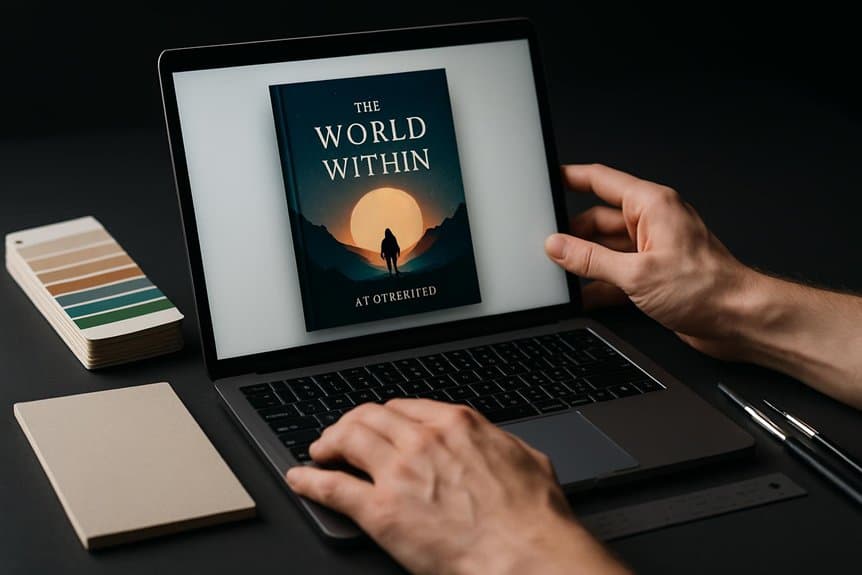
You can create a book cover with AI tools by starting with your genre, audience, and theme, then prompting an AI image generator for the mood, colors, and imagery you want. Use a tool like Venngage AI to build a polished layout, adjust fonts and spacing in the editor, and replace weak AI text with clean vector type. Export a high-resolution PNG or PDF for print or digital use, and you’ll discover a lot more ways to refine it.
Key Takeaways
- Define your genre, audience, and theme first so the AI cover matches the book’s tone and visual style.
- Write a detailed prompt with title, author, colors, mood, typography, layout, and any elements to exclude.
- Generate several cover options with AI image tools, then refine composition, lighting, and details through iteration.
- Edit the chosen design in a drag-and-drop editor to fix spacing, replace AI text, and ensure readable thumbnail typography.
- Export the final cover as a high-resolution PDF, PNG, or JPG with correct trim, bleed, and commercial-use rights checked.
Why Use Venngage AI for Book Covers
If you want a faster way to create a polished cover, Venngage AI gives you a strong starting point with publish-ready designs for ebooks, audiobooks, and print. With the Venngage AI Book Cover Generator, you can enter your genre, tone, audience, and theme, then get tailored layouts that you can refine in a drag-and-drop editor. You can adjust typography, colors, and layout without starting over.
The built-in AI Image Generator helps you create custom visuals, while AI icons, writing support, and branding automation keep your cover consistent. You can export high-resolution JPG, PNG, or PDF files for Amazon KDP or professional printing. Since you own your creations and can try the free plan first, you can explore publish-ready covers confidently before upgrading. Pagewriter Studio also offers a 5-day free trial so you can test features and start turning your idea into a full book. You can also contact our team in Naaldwijk, Netherlands for support or inquiries.
How to Plan a Book Cover Prompt
To get better results from an AI book cover generator, you need to give the prompt a clear creative brief. Start with genre, audience, and theme so the AI matches mood and imagery. For a minimalist book cover, name one focal image, colors, light, and style. Add title, author, and typography notes. Include references and a do not include list to steer results. Specify aspect ratio and file limits. Consider starting on free tiers like ChatGPT or Claude to test prompts and prose feel before upgrading to paid tools for bulk or higher-res exports with large context capabilities. For projects that require strong continuity with character or series lore, consider using tools with a Codex memory to keep details consistent across editions.
| Prompt part | What you specify |
|---|---|
| Genre | literary, thriller, fantasy |
| Visuals | subject, setting, palette |
| Type | title, byline, vibe |
| Constraints | references, exclusions |
| Specs | aspect ratio, resolution, export |
This helps you plan a book cover prompt that’s clear, usable, and ready for publishing.
Create a Book Cover in 5 Steps
Start by defining your genre, target audience, and main theme so the AI can match the cover’s mood, imagery, and typography to market expectations.
Next, write a detailed prompt with the title, author, mood, visual style, colors, and layout hints.
Then use an AI Image Generator to create several high-resolution options, tweaking keywords, composition, and lighting until you find 3–5 strong matches. Consider generating multiple variations to preserve a consistent brand voice across covers.
After that, import your chosen art into an editor to build a clean visual identity, correct spacing, and replace any AI text artifacts with crisp vector text.
Finally, export a print-ready cover in the right format and size, check commercial-use rights, and publish with confidence. Claude Pro’s large-context editing and voice-preserving edits can help maintain consistent branding across multiple cover variations.
Customize Fonts, Colors, and Layouts
Once your cover art is in place, you can sharpen the design by choosing fonts, colors, and a layout that fit both your genre and your thumbnail size. In your book cover maker, pick a typography style that stays readable at 150×240 px; make the title large, around 60–100 pt, and use only one or two fonts.
Pair a display font with a simple sans serif or serif and keep contrast strong, at least 4.5:1. Then match your color scheme to the story - cool blues for sci-fi, warm earth tones for memoirs - and lock those colors for consistency. Consider using free-tier AI tools like Raptor Write to iterate quick copy alternatives alongside your design.
Build the layout on a grid, keep safe margins, and center or left-align text blocks so they won’t get cropped. Test a few variations, too. Many designers also use AI tools like Wordtune or Jasper to generate alternative phrasings and layout ideas quickly.
Export a Print-Ready Book Cover
With your fonts, colors, and layout locked in, export the cover in a print-ready format that keeps those design choices intact on paper. Choose a high-resolution PDF or PNG at 300 DPI, add bleed, and match your trim size and spine width. Use safe margins so your title and author name don’t get cut off.
| Setting | Target | Why |
|---|---|---|
| Resolution | 300 DPI | Keeps print detail sharp |
| Bleed | 0.125–0.25 in | Prevents white edges |
| Margins | 0.25–0.5 in | Protects text |
Turn on trim, bleed, and crop marks before exporting. If your tool supports it, use CMYK and a WCAG-compliant PDF. Check image limits, confirm contrast, and verify every AI-generated asset’s license before you send the file to your printer. Be prepared for fact-checking and careful review of AI-generated elements to avoid hallucinated or inaccurate details. Consider keeping a verification log for any AI-created assets to document checks and licenses.
Conclusion
Now you know how to create a book cover with AI tools from start to finish. You can use Venngage AI to turn your ideas into a polished design, then refine the prompt, customize the fonts, colors, and layout, and export a print-ready file. With the right creative direction, you’ll save time and still get a cover that looks professional. Start experimenting today, and bring your book’s vision to life with confidence.
Ready to write your book with AI?
Turn your idea into a finished, publishable book. Start your 5-day free trial today, no installation needed.
Start your free trialKeep reading

Kosten website laten maken: deze 7 kostenposten moet je kennen
AI Book Writer - Wat zijn de echte kosten van een website laten maken? Ontdek de 7 belangrijkste kostenposten en leer hoe je duizenden euro' bespaart met

How to Analyze Competitor Books Using AI
Compare competitor books with AI to uncover gaps, and see how to turn those insights into your own winning angle.

How to Create Lead Magnets From AI Written Books
Unlock a simple way to turn AI-written books into irresistible lead magnets that capture leads fast and leave your audience wanting more.